| |
 |
Copyright
This manual is the copyright of NetOnNet AB. No part of this manual may be revised, copied or transmitted in any way without written permission from NetOnNet.
Statement
This manual does not provide any warranty or related declarations. NetOnNet will not be responsible for any data loss directly or indirectly for the products it mentions. All information in
this manual including the product specification, pictures and literatures is just for reference, NetOnNet reserves the rights to update contents of this manual without further notice.
Trademark
The trademark used in this manual is just for interpretation.
Guidelines for operating environment
- Please do not operate your netbook in a dirty or dusty environment. Do not use your netbook in a moist place, such as exposing it to rain or humidity; do not use it in a musty basement. Never leave your netbook
near the electric cooker or kettle where the air is moist.
- Do not expose the netbook to direct sunlight for long periods. Never leave your netbook in a car in direct sunshine.
- Always keep the radiator holes clear. Do not operate the netbook on a soft surface, such as quilt, sofa or blanket to make sure the radiators can work normally and prevent
the netbook from overheating. Also please ensure that the netbook is certain distance away from an electric heater or furnace, unless there is good ventilation.
- Do not place the netbook in subzero (under 0 °C) or high temperature (over 50 °C) surroundings, which could cause the hardware to operate abnormally.
- Do not put the netbook near magnetic field.
- Do not place the netbook on unstable trolleys, chairs or desks, to avoid any damage if the netbook falls.
- Do not put heavy objects on the netbook, to avoid any damage.
2
|
- Make sure the netbook is free of shock or impact; Always use the correct bag to carry the netbook, do not keep too many things in the bag to avoid any damage to the LCD screen.
- Never spill any liquid on the netbook; do not eat in front of the netbook, keep the drinks far away, to prevent the food or drink spoiling any components or causing a malfunction. Do not use the netbook when
your hands are wet, to avoid water seeping inside.
- Shut down your netbook during take off or landing of a plane; do not use the netbook near the medical apparatus in hospital.
Instructions for Netbook using
- Do not use netbook for extended periods, which could cause tiredness or even injury. Watching the LCD screen can cause eyestrain; keeping your body in the same pose for a long time or repeating the same action
may result in muscle injury, such as operating the keyboard touch pad or mouse too frequently for too long a time.
- Please adjust the LCD screen angle, the height of your desk and chair to the position where you can operate most conveniently and comfortably.
- The netbook will emit heat to the surface of the machine during operating or charging, do not put the netbook on your knees
or any other part of your body, to avoid any discomfort caused by the heat from netbook.
- Do not touch or press the LCD screen with your hands, this could damage the screen. To avoid violent impact never shut the netbook heavily.
- To avoid overheating and make sure the machine works normally, never cover the heat emitting holes.
- Do not insert any objects into the ventilation holes or other holes in the netbook, otherwise it could lead to damage to the internal components.
- In the event the netbook cannot be shut down normally, please press the power key for over 4 seconds to shut it down.
|
Instructions for using the LCD screen correctly
- To avoid unnecessary damage to the netbook, please handle the LCD screen cover gently when opening or closing.
- Do not put any objects on the LCD screen, to avoid damaging the internal elements.
- Do not touch the LCD screen with a finger or any other sharp object.
- To avoid scratching, do not let hard objects (such as fasteners, watch, belt and buckle, etc.) touch the LCD screen.
- Do not use any chemical detergent to clean the screen.
- Please use a special cloth to wipe the screen, do not use your hand to avoid leaving fingerprints on it.
- Do not let any liquid seep in to the LCD screen to avoid damaging the internal components.
Instructions for use the power adapter
- To make sure the netbook works normally, the power supply must comply with the range identified on the adapter label. If you are not sure about your connecting voltage,
please consult the distributor or your local power supply company.
- Please do not use unapproved adaptors for this netbook, neither can the adapter supplied with this netbook be used for other electrical equipment.
- Please do not place any objects on the power line, do not put it in a place where it is easy to trample.
- Hold the plug body when you take the plug out from the socket, do not drag the cable line directly.
- The adapter will heat up after working for some time, please keep it where it has good ventilation.
Cautions for battery using
- Please only use the battery supplied together with this netbook, or buy the same battery from our authorized distributors.
- Do not refit or re-assemble the battery without authorization.
3
|
- Do not play with the battery. Put the battery beyond children´s reach.
- Handle the battery safely. Never expose the battery to fire, otherwise it could lead to explosion.
- Please handle the failed battery according to local laws or regulations, do not discard it anywhere.
Cleaning
- Before cleaning the netbook, please shut off the netbook, take the plug from the socket and take the battery out.
- Please use the special cloth and water for cleaning the netbook, do not use rough or corrosive material for cleaning, never use a chemical cleanser.
Maintenance
- Nobody is allowed to do maintenance to the netbook without permission. Improper disassembly could lead to electrical shock or other dangerous results. Please consult our technicians if you have any questions.
- Please keep the packaging, it could be used to protect the netbook if there is a need to send it back for maintenance.
- Please refer to the warranty manual for detailed guarantee clauses.
- Please take out the power plug and consult our professional technicians in the following cases:
- The cable line and plug has been damaged.
- Liquid entry into the machine.
- The netbook falls to the floor or the case cracks.
|
Manual
English
On – a different brand
On is more than a brand. It’s a declaration of proof. When we place On on one of our products, we’ve worked hard to ensure that it maintains a high level of quality. That it’s
modern, yet have a proven track record. That it’s well designed and offers a good price compared with similar products. In short,
On is an extension of the NetOnNet brand.
The On brand is all about keeping things simple. Which is exactly what you should expect from a brand that comes direct from the warehouse shelf.
4
|
 |
Directory |
1. Regulations ....................................................................................................................................
Chapter 1 - Netbook introduction .......................................................................................................
1.1 Front side .................................................................................................................................
1.2 Left side ...................................................................................................................................
1.3 Right side .................................................................................................................................
1.4 Bottom side ..............................................................................................................................
1.5 Status Indicator ........................................................................................................................
1.6 Power button & implementation ................................................................................................
|
2
6
6
7
8
9
10
11
|
Chapter 2 - First use ..........................................................................................................................
2.1 Connecting the AC adapter .....................................................................................................
2.2 Transporting the netbook ........................................................................................................
|
12
12
12
|
Chapter 3 - Operation .......................................................................................................................
3.1 Fn key combinations ................................................................................................................
3.2 Numeral keyboard ...................................................................................................................
3.3 Sound system ..........................................................................................................................
|
13
13
14
14
|
Chapter 4 - Power system .................................................................................................................
4.1 Power adapter .........................................................................................................................
4.2 Battery system ........................................................................................................................
|
15
15
15
|
Chapter 5 - Troubleshooting .............................................................................................................
|
17
|
Appendix 1 Specifications ..................................................................................................................
|
20
|
Symbols In this user-guide are as follows:
 |
Reminder of danger of data loss, equipment damage or personal security risks because of incorrect operation. |
 |
Reminder of possible damage because of incorrect operation. |
 |
Remind important information, the general attention, related to use of the netbook. |
|
5
|
|
Chapter 1 Netbook introduction |
Netbook basic parts and features are as follows::
- Front side
- Left side
- Right side
- Bottom
- Status indicator
- Power keypad & implementation keypad
|
|
Symbols in the user manual and quick guide are for reference only, there may be differences between the product and purchased product in appearance and colour.
|
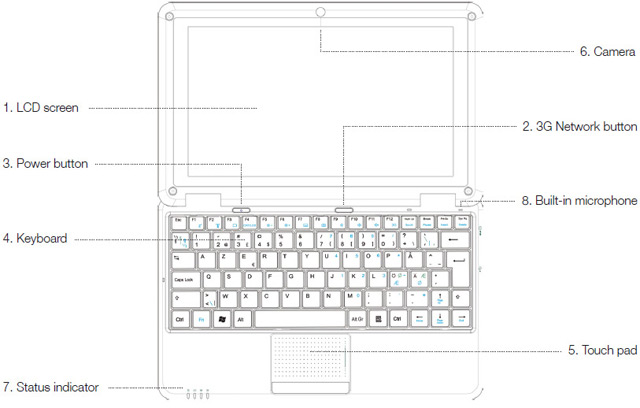
1.1 Front side
| No. |
Item |
Description |
| 1 |
LCD screen |
Displays the contents of output. |
| 2 |
3G Network button |
Turn wireless network on/off. |
| 3 |
Power button |
Turn the power on/off. |
| 4 |
Keyboard |
Input data. |
| 5 |
Touch pad |
Touch type pointing device to select functions, equivalent to a mouse. |
| 6 |
Camera |
Built-in camera. |
| 7 |
Status indicator |
Indicates status of the netbook and its components. |
| 8 |
Built-in microphone |
Omni-directional sound-based input device, which can accept stereo, and transmits voice and other sound data to acceptable program input. |
6
|
 |
Chapter 1 Netbook introduction |
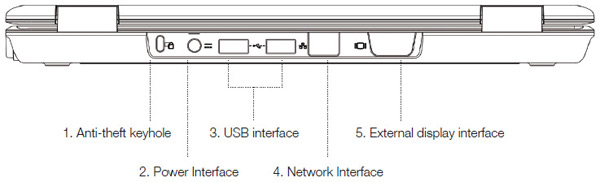
1.2 Back side
| No. |
Item |
Description |
| 1 |
Anti-theft key hole |
Anti-theft lock for the static netbook, to prevent theft. |
| 2 |
Power interface |
Offers power supply and charges battery. |
| 3 |
USB Interface (V2.0) |
Connects USB devices. |
| 4 |
Network interface (RJ-45) |
Supports 10/100Mbps speed network adapter. |
| 5 |
External Display Interface |
Connects external display LCD via VGA. |
7
|
|
Chapter 1 Netbook introduction |
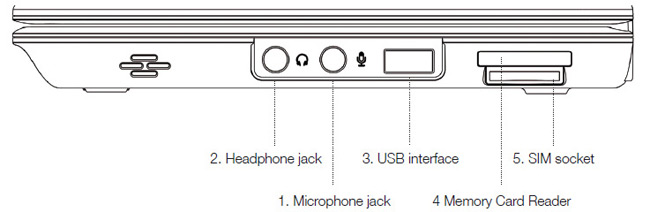
1.3 Right side
| No. |
Item |
Description |
| 1 |
Microphone jack |
Connects mono microphone. |
| 2 |
Headphone jack |
Connects headphones and audio speakers. |
| 3 |
USB Interface (V2.0) |
Connects USB devices. |
| 4 |
Memory card reader |
Supports SD/MS/MMC card. |
| 5 |
SIM socket |
SIM card reader. |
8
|
|
Chapter 1 Netbook introduction |
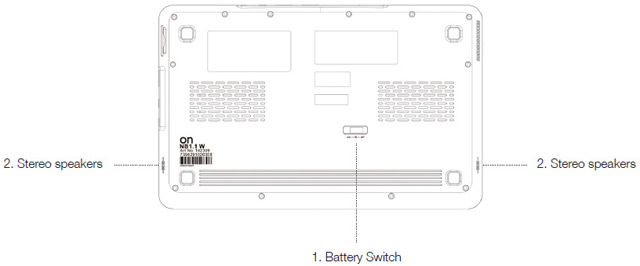
1.4 Bottom side
| No. |
Item |
Description |
| 1 |
Battery Switch |
Battery Power on/off. |
| 2 |
Stereo speakers |
Double speakers, stereo output. |
9
|
|
Chapter 1 Netbook introduction |
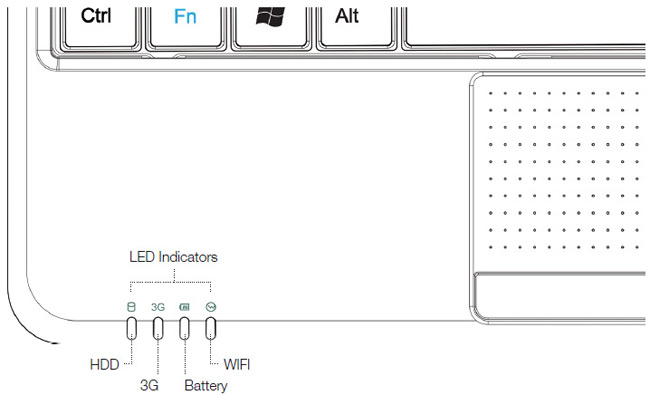
1.5 Status Indicator
The indicators on the front side indicates the
status of the netbook and its components.
Indicator symbols are as follows.
| Symbol |
Item |
Description |
 |
Hard drive |
The indicator tells you whether your internal hard drive is being accessed. |
 |
3G indicator |
The indicator tells you whether your computer is connected to 3G network. |
 |
Battery status |
The Battery Indicator tells you whether the battery is charging or is already fully charged. The flickering blue indicator tells you that the battery is charging. The flickering red indicator tells you
that the battery charge is low. |
 |
Wireless Network |
The WiFi Indicator appears to indicate whether the wireless LAN is connected or not. |
10
|
|
Chapter 1 Netbook introduction |
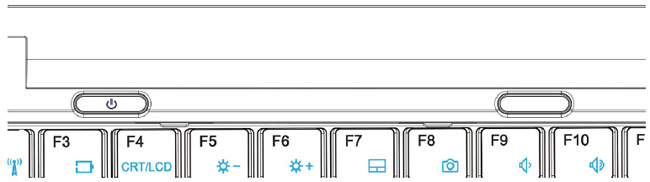
1.6 Power button and implementation keypad
Power button is used for starting the netbook.
The implementation keypad is used for running
procedures directly, when starting the corresponding
function, the indicator light will be on as follows.
| Symbol |
Name |
Description |
 |
3G Network |
Open or close the 3G network. |
 |
Power button |
When the system is off, press and hold the power button for about one second to start the netbook. When the system status is working, the key role of the power management
is played by the operating system. Hold down the power button for more than four seconds, to turn off the netbook forcibly. |
|
Forcibly turning off the netbook may lead to data loss!
|
|
The implementation keypad is controlled by the operating system.
After the operating system is installedcorrectly, the function keys can be implemented.
|
11
|
|
Chapter 2 First use |
This chapter introduces some basic issues in
using netbook, including the following topics:
- Connecting the AC adapter
- Start-up / shutdown
- Portable netbook
2.1 Connecting the AC adapter
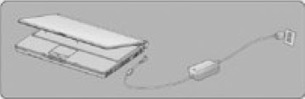
Follow these steps to connect the adapter::
1. Connect the adapter and power cord.
2. Put the AC power plug into the power socket.
3. Put the AC adapter output jack into the netbook power supply.
4. Make sure that all connections have been connected correctly.
|
Do not use the netbook-based dedicated adapter on other electrical equipment; although other adaptor shapes have many similarities to the adapter but
are not exclusive to the netbook, please do not use them in the netbook.
|
|
Because different countries have different voltage and design of power plug, if you are using this product in other countries, please choose a
suitable local adapter or with a power cord socket converter.
|
|
|
2.2 Transporting the netbook
If you want to transport the netbook, please note the following:
- Please make sure the disk has stopped before the operation, check that the built-in hard disk drive indicator light is extinguished.
- Please turn off the power supply or put the netbook into hibernation state.
- Please disconnect all external equipment and the AC adapter before moving.
- Please do not carry netbook by the rear or the screen.
- Please use a dedicated netbook bag for carrying and avoid placing the netbook and other objects together.
|
If you need to carry the netbook and leave for short period, and want to maintain the current status of working, you can set the netbook to sleep,
when you re-open, the netbook will return to the working status before hibernation.
|
|
Do not move the netbook when the hard disk is still running as it is likely to damage the netbook, especially the hard disk. Please move it while in the state of standby or hibernation.
|
|
If you need to take the netbook to travel in different countries or regions, please note and check whether the power cord fits your local power standard or not, if necessary buy a power cord
that meets local requirements.
|
|
12
|
|
Chapter 3 Operation |
 |
The Fn button is used together with other key combinations to turn on or off specific functions.
|
3.1 Fn key combinations
Composition and implementation of specific functions in the following table:
| |
Symbol |
Description |
| Fn+F1 |
 |
Sleep |
| Fn+F2 |
 |
WiFi/Bluetooth on/off |
| Fn+F3 |
 |
Low battery warning on/off |
| Fn+F4 |
 |
CRT/LCD switch |
| Fn+F5 |
 |
Brightness down |
| Fn+F6 |
 |
Brightness up |
| Fn+F7 |
 |
Touchpad on/off |
| Fn+F8 |
 |
Camera on/off |
| Fn+F9 |
 |
Volume down |
| Fn+F10 |
 |
Volume up |
| Fn+F11 |
 |
Volume mute |
| Fn+F12 |
 |
3G on/off |
Part of the operation may be required and the corresponding operating system software support, please refer to the operating system documentation.
13
|
|
Chapter 3 Operation |
3.2 Numeral keyboard
The embedded numeral keyboard is similar
to that in a desktop computer.
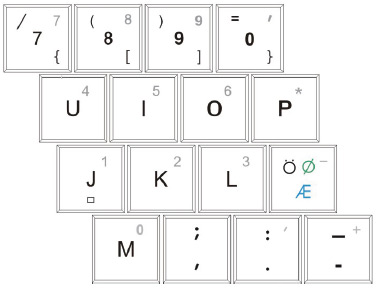
With the embedded numeral keyboard locked, you can do the following:
- Use the embedded number keys on the keyboard to enter numbers.
- At the same time, press the Fn key on the numeric keypad embedded press the corresponding key to enter characters; simultaneously press the Shift key to enter the capital letters.
|
Keyboard maintenance: With long time usage, keys usually accumulate dust, a small brush can be used to clean the cracks, or use a handheld vacuumcleaner to remove dust and debris. Clean
the keyboard surface with a soft cloth with some detergent when the machine is turned off and gently wipe the keyboard surface.
|
|
|
3.3 Sound system
You can use the function key combination to adjust the volume, for details please see section 3.1.
|
14
|
|
Chapter 4
Power system |
This chapter will introduce the battery and the power supply.
Topics include the following:
- Power adapter
- Battery pack
- Power management
4.1 Power adapter
The power adapter's function is to convert AC to DC power, which is required by the netbook.
Please see section 2.1 for instruction on how to connect the AC adapter.
|
The adapter contains internal high-voltage components, in order to avoid harm to your body, do not do any dismantling of adapter or attempt repair.
|
4.2 Batteries
Charge
To charge the battery, plug the AC adapter to the netbook, and then connect the power socket, you can charge the netbook.
|
During the charging process, you will still be able to engage in normal netbook operation. In the shutdown state charging time can be shortened.
|
15
|
Extend battery life
Long time usage of a battery will lead to degradation, that is, the performance of the battery will start coming down with extended use. To maximize battery life, we recommend the following.
New battery calibration status
At the first time of using battery pack, carry out a "calibration" process:
1. Connect the AC adapter, charge fully.
2. Disconnect the AC adapter and start the system.
3. Fully discharge the battery.
4. Re-connect the AC adapter, and once again re-charge the battery pack.
5. Complete the cycle of the implementation of the above steps 3 times.
6. After a long time without charging, do a full discharge.
|
Carry out the calibration process, if not using the netbook, please unplug the power cord.
|
|
Do not store the battery pack below 0 degrees Celsius or above 50 degrees Celsius, the temperature anomalies will affect battery performance. Do not let battery short-circuit the contact point,
or it will seriously affect the life of the battery or even damage it. Do not drop or strike the battery. Do not place near heat sources or put the battery pack into a fire, the battery pack can cause dangerous
explosions. Please deal with an end-of-life battery pack in the correct way.
|
|
|
Chapter 4 Power system |
|
Battery life and the number of charge cycles are limited, when you find there is a sharp decline in the time of use of the rechargeable battery pack, please run the battery calibration flow. If the
batterypack cannot be upgraded after calibration of battery life, it is possible that your battery life is finished, it should be replaced with a new battery.
|
How to maximize your battery
You can use the following methods for an increase in battery-power time:
- Adjust the brightness of the LCD screen. High LCD brightness has large power consumption.
- Proper use of the power management settings. You can set up your own power management mode.
- Make the best use of the sleep mode. This mode can be a great battery consumption saver, if you need to leave the netbook for some time, we recommend that you enter hibernation or standby status before leaving the netbook.
- Turn off the wireless function when you are not using it.
- Make a battery calibration periodically (2-4 weeks).
|
Develop good habits for saving battery life.
|
16
|
|
|
Chapter 5 Troubleshooting |
This chapter describes how to deal with common system problems, please read the contents of this chapter before contacting technical staff.
|
|
|
Serious problems may need technical repairs, do not try to open and repair by yourself. When you cannot rule out the failure after reading the contents of this chapter, please contact the local
authorized service centres to get professional services as soon as possible.
|
|
AC adapter
| Issue |
Treatment process |
| The power adapter does not supply power |
Check the joints and make sure there is a reliable connection between the power socket and the netbook's power cord. |
| Check the power cord and the power plug, if there is damage, please replace the adapter. |
Batteri
| Issue |
Treatment process |
| The battery pack does not supply power |
Possible lack of battery power, connect the AC adapter for charging. |
| The battery pack does not charge after connecting AC adapter |
A fully discharged battery pack will not start charging immediately, please wait a few minutes. |
| To save battery life, the system will only implement the charging operation when the battery is lower than 95%. |
| Battery power is less than the estimated during continous work |
If the indicator light is not on, then the battery pack may be at the end of life, please contact your dealer and buy a new battery pack for replacement. |
| Different operating systems and power management settings will affect the status of the battery power. The working hours of the netbook will be different. You can try to reduce
LCD screen brightness to reduce system power consumption. |
| If the battery pack is frequently used while not fully charged, it may not be able to exert its full capacity. Please execute a battery calibration. |
17
|
|
Chapter 5 Troubleshooting |
Standby / hibernation
| Issue |
Treatment process |
| The system can not enter standby / hibernation |
Please check whether you are running the Windows Media Player software, if the software is running, the netbook may not be able to enter the wait / sleep mode. |
Keyboard
| Issue |
Treatment process |
| Pressing the alphabetkeys results in the wrong character |
Please check whether the number lock is activated. press Fn + Num Lock key. |
| Make sure you do not change the keyboard language after installing the software. |
Hard drive
| Issue |
Treatment process |
| The hard drive do not start |
Problems due to system errors or virus. Remove the virus and restore system files. |
| Operating system files are probably wrong, please refer to the operating system documentation. |
| Running slowly |
Run the procedures to check the disk and disk files. |
LCD screen
| Issue |
Treatment process |
| The LCD display turns black |
Press Fn key combinations and change the display mode. Make sure the LCD screen is not turned off. |
| System has been configured to enter the sleep or wait mode. |
18
|
|
Chapter 5 Troubleshooting |
Sound system
| Issue |
Treatment process |
| No sound |
Use Fn key combinations to adjust the volume. |
| Check the software volume settings. |
| Check that the speakers are connected firmly. |
| Check the Windows Device Manager. Pay attention not to conflict with other hardware. |
USB
| Issue |
Treatment process |
| USB devices does not work |
Check it the USB cable is connected firmly. |
| Make sure the USB device driver is installed correctly. |
LAN
| Issue |
Treatment process |
| Unable to connect |
Please make sure the cable between the network card interface and the hubs is connected firmly. |
19
|
|
Appendix 1 Specifications |
Processor
- Intel Atom series processor
Chipset
Wireless LAN
- Intel ® 3945ABG wireless card
- Supports 802.11b/g/n
Memory
- 1 GB DDR2 667 memory, maximum 2GB
Data Storage
- Netbook dedicated 160 GB hard drive
Video
- GMA 3150 video card
- 10.2" wide screen display
- 1024 * 600 resolution
Audio
- Dual speakers
- Built-in microphone
- Separate audio input / output port, respectively headphone output and microphone input device equipment
Keyboard and touchpad
- Nordic layout
- Ergonomically designed touch pad with two buttons
20
|
|
I / O ports and connecting devices
- USB 2.0 interface
- External display interface
- Microphone interface
- Headset Interface
- RJ11 interface
- RJ45 interface
- Power Interface socket
- Express Card slot
- Card reader (supports SD / MS / MMC card)
- Bluetooth
- 3G Module
Other
Weight and size
- About 1.2Kg (with battery pack)
- 265mm (L) x 185mm (W) x 28.8mm (H)
Operating environment
- Temperature
- Operating: 5°C ~ 35°C
- Storage: -20°C ~ 60°C
- Humidity
- Homework: 20% ~ 80%
- Storage: 10% ~ 90%
Power battery
- AC adapter, 65 watts, 100 ~ 240 volts
- High-capacity lithium-ion battery
|
|
|